

Onboarding
This document provides a basic overview of the Account API endpoints, grouped by purpose. All endpoints are prefixed with their respective API versions as shown.
Authentication
Section titled “Authentication”Everything starts with the login flow witch is the first step to access the app. No user can access the app without logging in. Your access token is generated after the login flow and is used to authenticate your requests to the app.
The login flow for the app is as follows:
- The user opens the app and is prompted to log in.
- The user enters their email and password.
- The app validates the credentials and redirects the user to the home screen.
- If the user has some MFA enabled, the app prompts the user to enter the MFA code.
- The app stores the access token in the secure storage.
- The app makes a request to the home endpoint to get the home data and so on.
Login Flow
Section titled “Login Flow”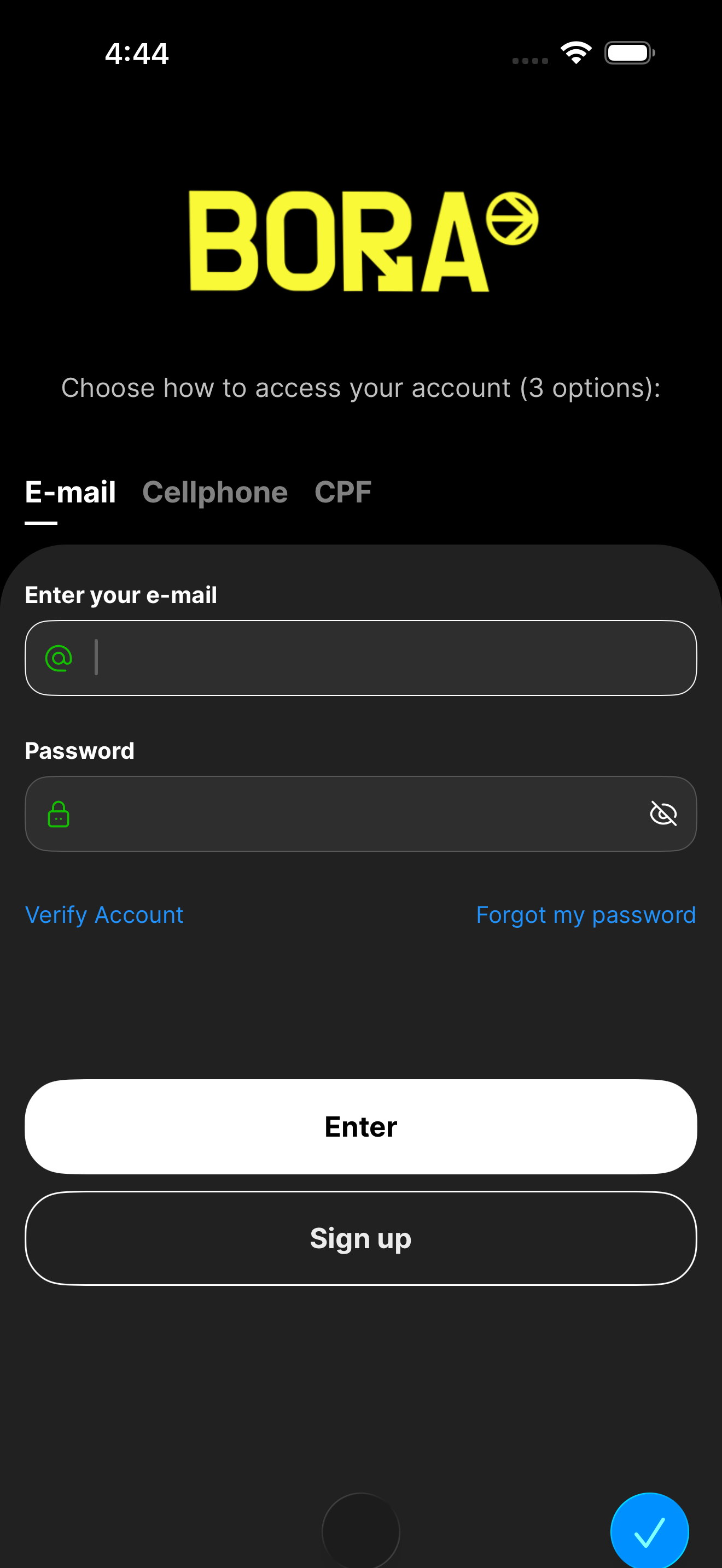
For this flow, you need to call precisely some steps in order to authenticate the user.
1. RSA Public Key
Section titled “1. RSA Public Key”First of all, you need to get the RSA public key from the app.
Endpoint: [GET /v1/authentication/getPublicKeyRsa]
Description: Retrieves the RSA public key from the app.
Response Interface
Section titled “Response Interface”export interface RsaKey { value: string;}Response Example
Section titled “Response Example”{ "value": "-----BEGIN PUBLIC KEY-----\nMIGeMA0GCSqGSIb3DQEBAQUAA4GMADCBiAKBgFpSXuvNOSwZwBZAbihn/euG3vme\noFCfNlg0pJDeZQNBsPJnge8lPlig+Va6zCj7N2LriWEGyW/3Y8lhM2L+h/vypUIY\n7ka9sTX08WkofhB6SRbfnNidl3WB3Kvr1UCAvsFcoE4Rv+0BHmnGmVOKLSRrJKqY\nut0804YqTLPgIieBAgMBAAE=\n-----END PUBLIC KEY-----\n"}2. Login
Section titled “2. Login”Now you have the RSA public key, you can encrypt the user password using it. You will need to send the encrypted password to the app and for it, you are going to have some RSA encryption engine.
Request Interface
Section titled “Request Interface”export interface LoginRequest { identifier: string; password: string; identifierType: ServerIdentifierType; countryCode: string; applicationId: string; mfaSecretCode?: string;}
export enum ServerIdentifierType{ EMAIL = 'email', MOBILE = 'mobile', DOCUMENT = 'document', UNKNOWN = 'unknown'}Request Example
Section titled “Request Example”{ "identifier": "email@example.com", "password": encryptRSA(publicKey, "MY_SAMPLE_PASSWORD"), "identifierType": "email", "countryCode": "BR", "applicationId": "2", "mfaSecretCode": "123456"}Response Interface
Section titled “Response Interface”You are going to receive all user related information.
export interface UserDetails { // User's country code country: string; // User's email address email: string; // Feature flags for user capabilities featureControl: string; // Latest terms acceptance status hasAcceptedLatestUsePolicy: boolean; // Unique user identifier id: string; // Multi-factor authentication status mfaStatus: boolean; // User's mobile phone number mobile: string; // KYC bypass flag for providers byPassKycProvider: boolean; // User's full name name: string; // Profile image URL path imagePath: string; // Employee code (if applicable) employeeCode?: string; // User's wallet information wallet: Wallet; // Associated enterprise identifier enterpriseId: string; // App and referral codes memberCodes: MemberCodes; // KYC verification status hasKyc: boolean; // Permission to display name publicly acceptShowName: boolean; // User's document information document: DocumentData; // Profile photo URL photo: string; // Account creation timestamp creationDate: Date; // Trusteeship profile flag trusteeshipProfile: boolean; // Onboarding validation status hasOnboardingValidation: string; // Application avatar URL appAvatar: string; // Message of the day content motd: Partial<Motd>; // User's nickname nickName: string; // Registration method used registerIdentifierType: RegisterIdentifierType; // User's address (optional) address?: Address; // White label configuration (optional) whitelabelConfig?: WhitelabelConfig; // White label profile (optional) whiteLabelProfile?: WhitelabelProfile;}And the token will be returned in the response headers as a cookie called connect.sid. You need to grab it and store it in the secure storage.
Password Management
Section titled “Password Management”-
Lost Password
POST /v1/authentication/lostpasswordInitiates the password recovery process. -
Change Lost Password
POST /v1/authentication/changelostpasswordUpdates the password after a recovery request. -
Change Password
POST /v1/authentication/changepasswordChanges the user’s current password.
Signup & Verification
Section titled “Signup & Verification”-
Confirm Signup
POST /v1/authentication/confirmsignupConfirms user registration using a verification code. -
Resend Confirmation Code
POST /v1/authentication/resendconfirmationcodeResends the signup or verification confirmation code. -
Account Verification (Onboarding)
POST /v2/accounts/onboarding/sign-upVerifies and completes the account signup process. -
Resend Verification Code
POST /v1/authentication/resendconfirmationcodeResends the verification code during onboarding.
User Management
Section titled “User Management”-
Create User
POST /v3/accounts/usersCreates a new user account. -
Get User Details
GET /v2/accounts/usersRetrieves details of the authenticated user. -
Edit User
PUT /v2/accounts/usersUpdates user profile information. -
Delete User
DELETE /v2/accounts/usersDeletes the authenticated user account.
Onboarding
Section titled “Onboarding”Check Identifier Availability
Section titled “Check Identifier Availability”GET /v2/accounts/onboarding/availability/{identifier}

Checks whether a given identifier (e.g. email, document, or cellphone) is available.
This endpoint is called in two steps:
- First, to verify the availability of the document.
- Then, to verify the availability of the cellphone number or email address.
Query Parameters
identifier— The value to be checked (cellphone, document, or email).
Response
export interface IdentifierAvailabilityResponse { uniqueId: boolean;}-
Onboarding Status
GET /v2/accounts/onboarding/{identifier}Retrieves the onboarding status for a given identifier. -
Facematch
POST /v2/accounts/onboardingPerforms identity verification during onboarding.
Multi-Factor Authentication (MFA)
Section titled “Multi-Factor Authentication (MFA)”-
Verify MFA Status
GET /v2/accounts/mfaRetrieves the MFA status for the user. -
Start MFA Process
POST /v1/authentication/startmfaprocessInitiates the MFA setup or validation process. -
Finish MFA Process
POST /v1/authentication/finalizemfaprocessCompletes the MFA process.
Policies
Section titled “Policies”- Accept Latest Policies
POST /v1/authentication/policies/latest/acceptRecords acceptance of the latest policies and terms.
Referrals & Engagements
Section titled “Referrals & Engagements”-
Member Get Member (MGM)
GET /v2/engagements/referrals/mgmRetrieves MGM referral information. -
Referrals
GET /v1/referralsRetrieves referral data for the user.
Accounts & Connections
Section titled “Accounts & Connections”-
Linked Accounts
GET /v2/accounts/linked-accountsRetrieves accounts linked to the current user. -
All Linked Accounts (Homepage)
GET /v2/e-commerce/homepage/linked-accountsRetrieves all linked accounts for homepage display. -
Enroll Account Connection
POST /v2/accounts/linked-accounts/auth-tokens/{provider}Enrolls a new account connection for a given provider.
Platform & Metadata
Section titled “Platform & Metadata”-
Add Mobile Token
POST /v1/platform/mobile/tokenRegisters a mobile device token. -
Countries & Areas
GET /v2/accounts/countries-areaRetrieves the list of supported countries and areas. -
Accepted Documents List
GET /v1/platform/documents/acceptedRetrieves the list of accepted documents.